Manage unsubscribes
Reply management processes STOP requests and maintains your blacklist inside the software, without an external unsubscribe service. You control exclusions and keep useful replies.
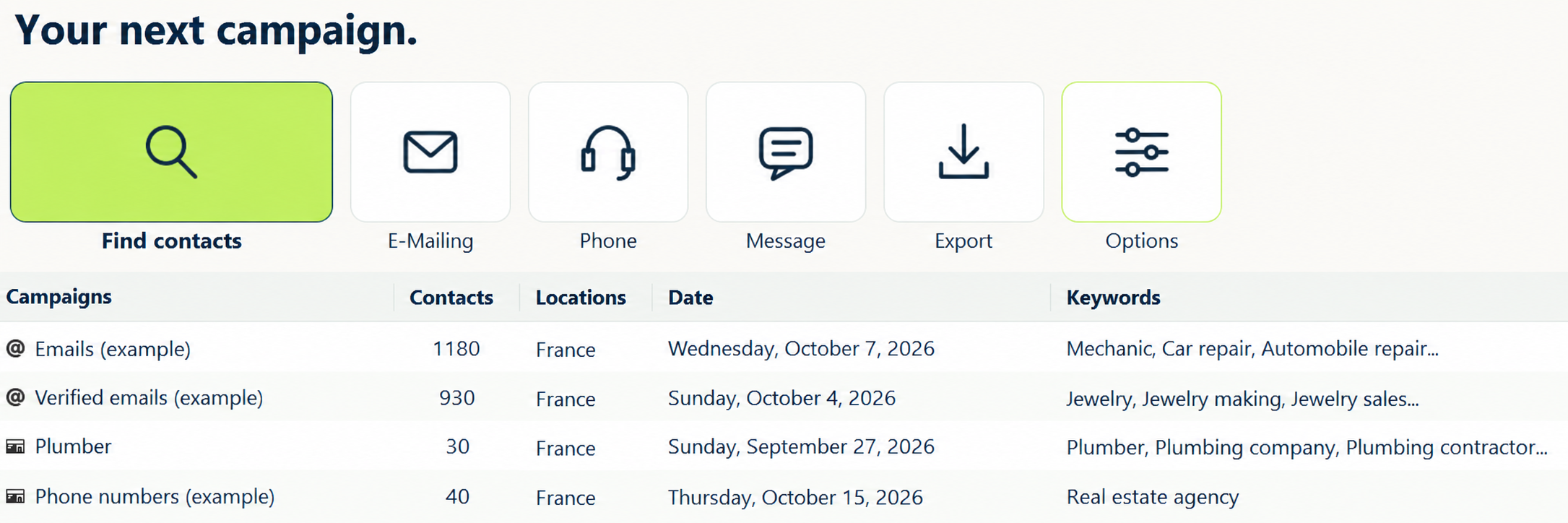
1. Open Options
On the home screen, click Options.
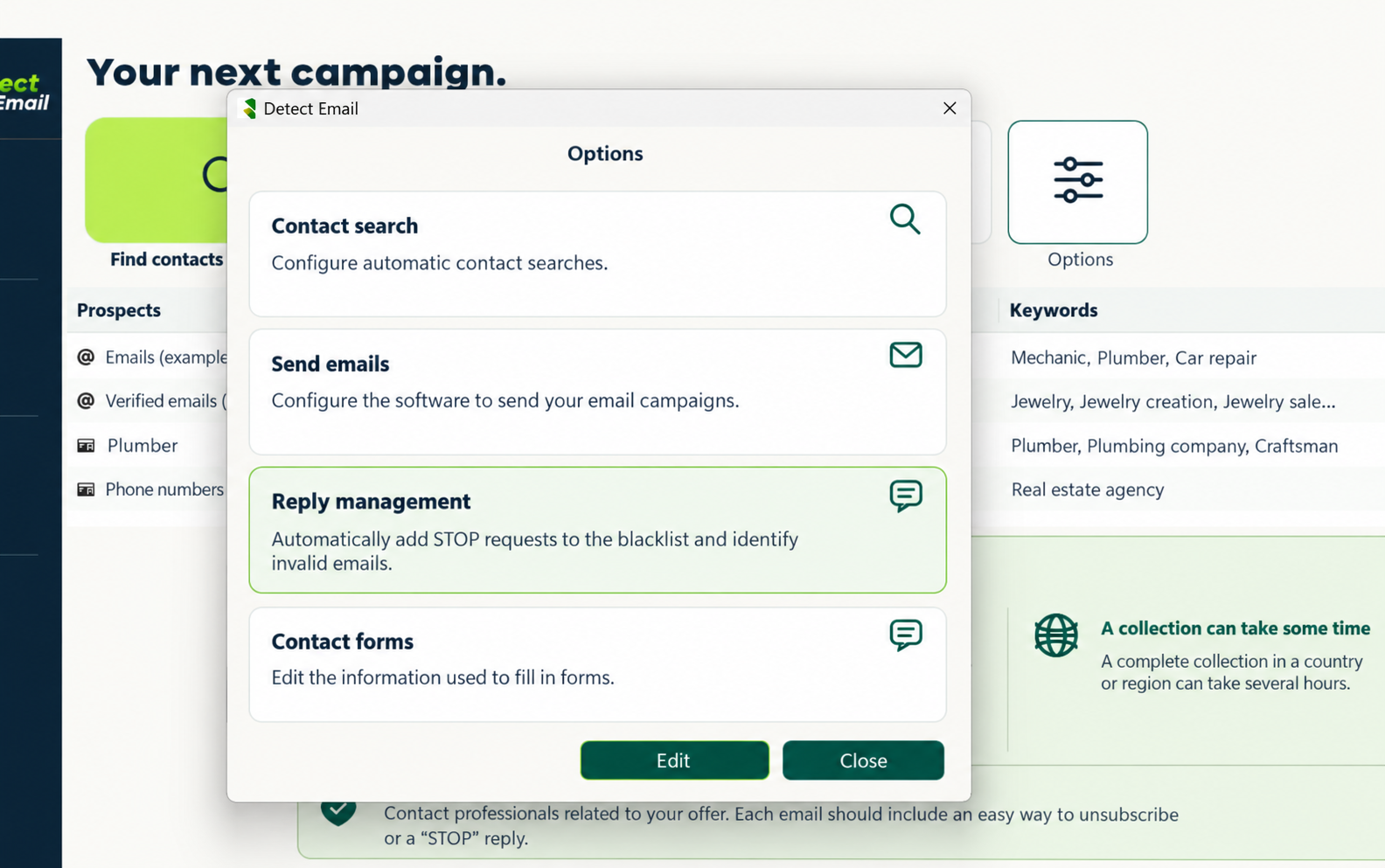
2. Choose Reply management
Select Reply management, then Edit.
3. Connect the mailbox receiving replies
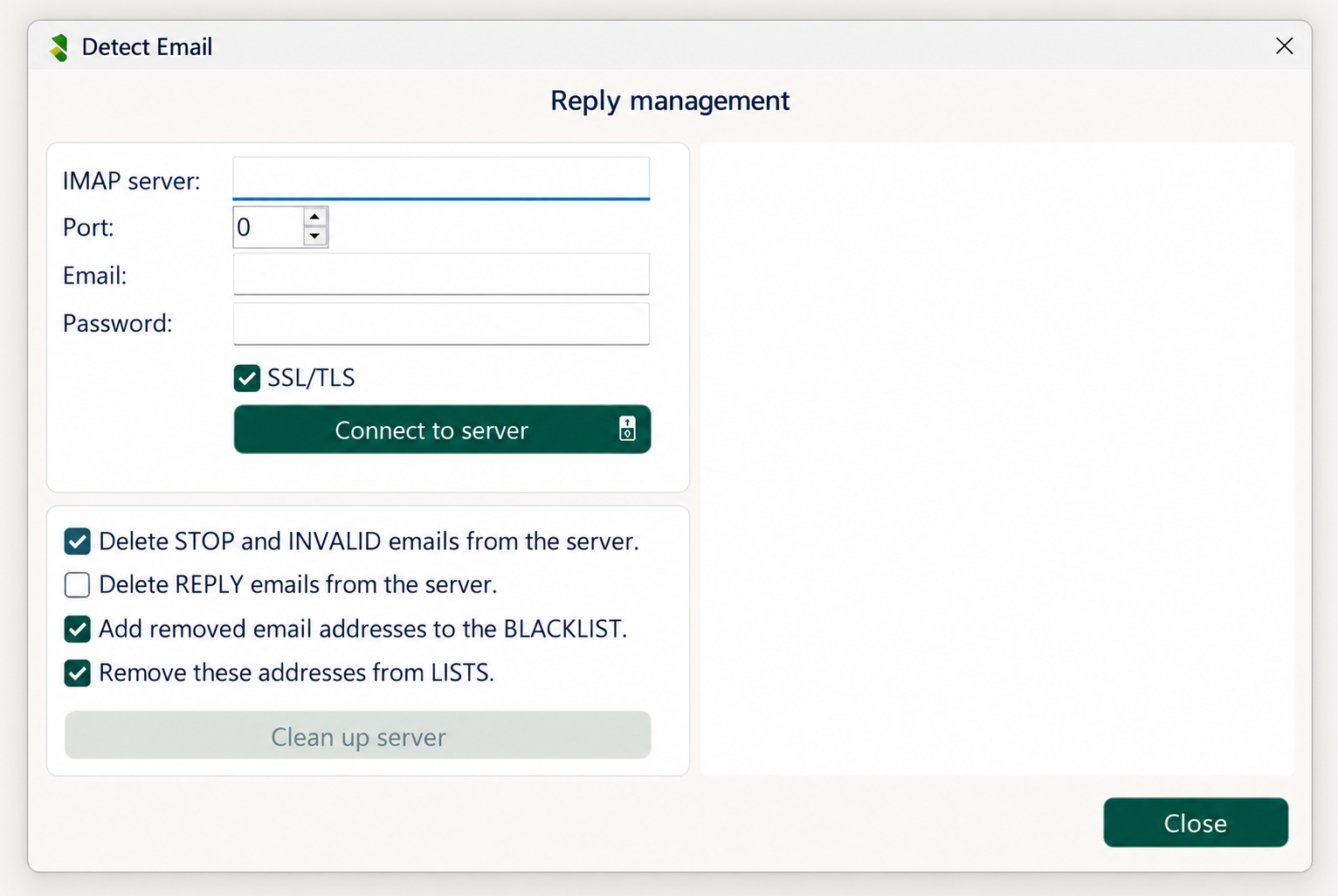
In your provider’s dashboard, open the email service and mailbox settings. Look for Manual configuration or IMAP settings. Use the mailbox or app password required by the provider, not your software license or dashboard password. Reset a forgotten mailbox password in its administration panel.
| Field | Provider example |
|---|---|
| IMAP | imap.example.com |
| Port | 993 |
| SSL/TLS | Enabled |
| Full email address | |
| Password | Mailbox / app password |
imap.example.com is an example, not a real provider setting. Confirm the hostname in your provider’s documentation.
OVH MX Plan · Official settings
4. Review categories, then clean up
- Click Connect to server. The software separates STOP, INVALID and REPLY.
- Enable BLACKLIST and LISTS cleanup to exclude STOP requests from future campaigns.
- Leave REPLY deletion unchecked to keep useful conversations. Review results before Clean up server.
- A full mailbox can be temporary; it does not always mean an invalid address. Check ambiguous bounces before permanent exclusion.
The benefit is autonomy and list hygiene. A link alone does not determine spam placement. Some providers require one-click unsubscribe for bulk mail: STOP processing does not replace that requirement.
Contact support →